Advanced Bulk Item Editor
Table of Contents
How to use
Applying edits to selected items and subitems
Applying changes to subitems conditionally
Do you need to apply changes to subitems conditionally? No problem! By defining conditions you can apply changes to subitems only if the condition is met.
To apply changes to subitems conditionally please follow the steps below:
- Open the board with the subitems you want to modify.
- Mark parent items of subitems you want to modify.
- Open Advanced Bulk Item Editor app from selected items context menu.
- Select the edit you want to perform. For example, “Set status”.
- Select the subitems status column you want to modify.
- Select the status you want to set.
- Click “Define subitems filter” button.
- Select the column you want to filter by.
- Provide the filter condition. For example, “Does not contain”.
- Provide the filter value. For example, “Facebook”.
- Click “Continue” button.
- Review changes and click “Apply” button.
- Check the results in the board.
Please have a look at the video below to see how to apply changes to subitems conditionally.
Shifting due dates
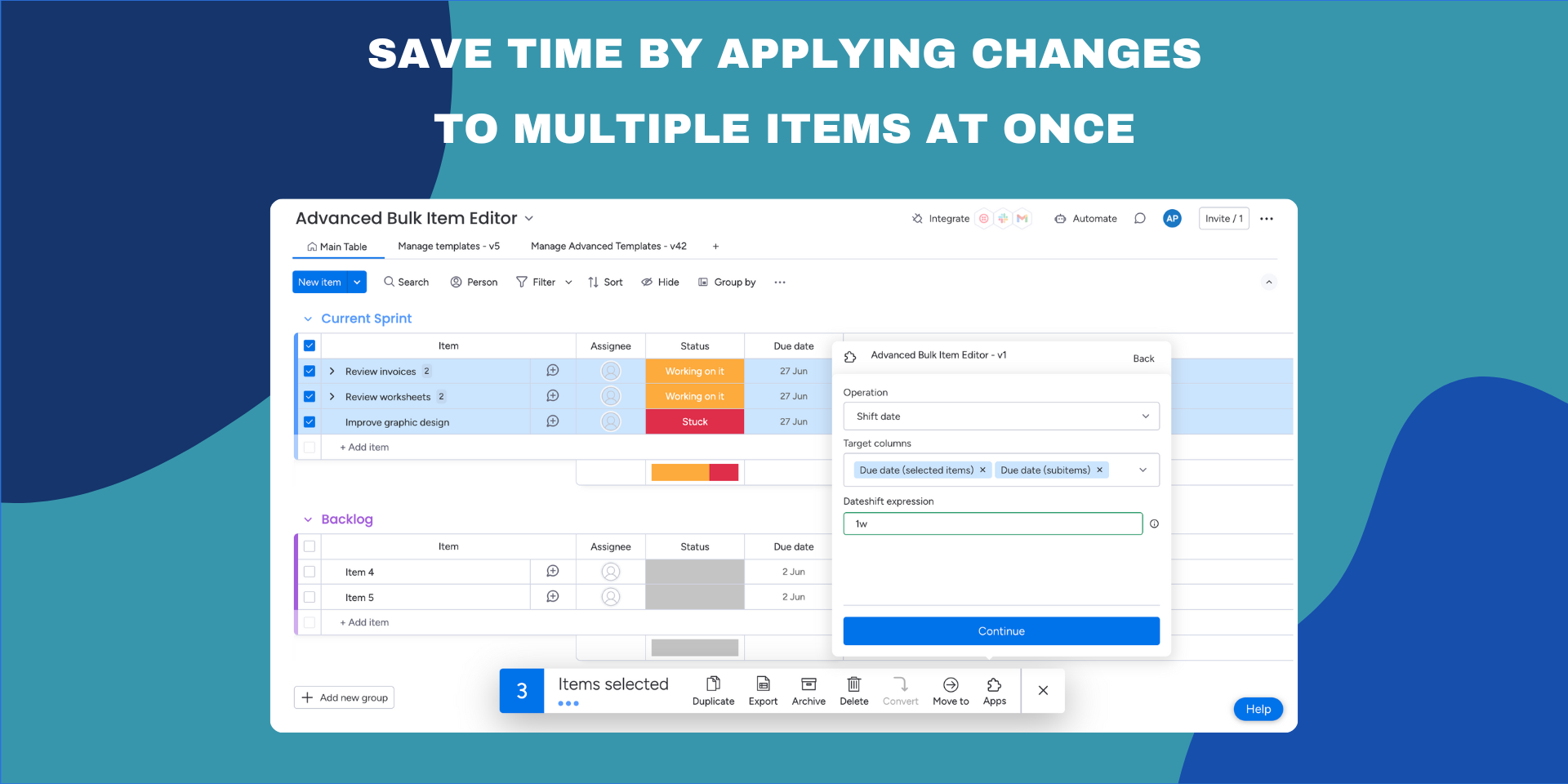
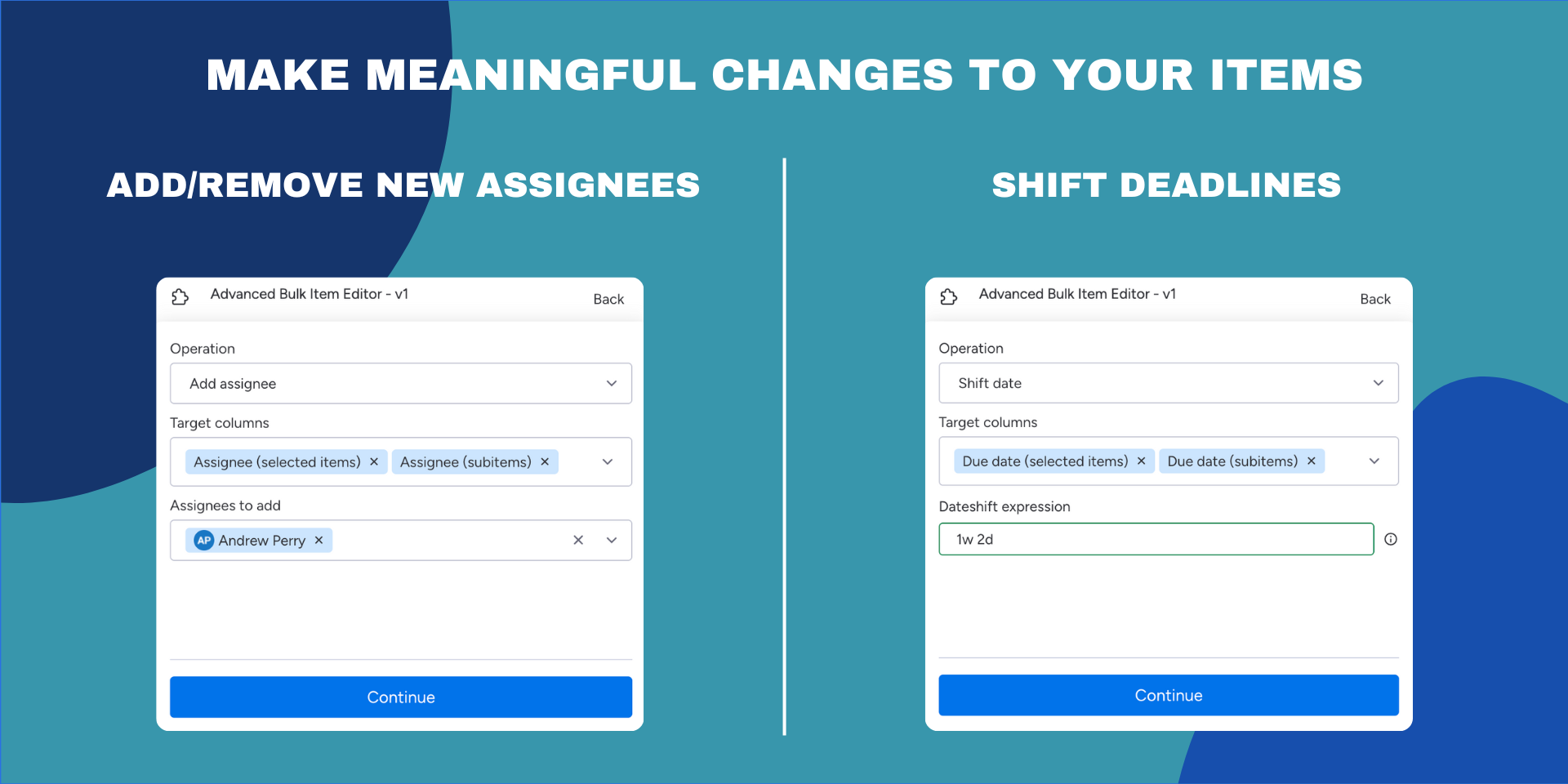
Was your project deadline moved? No problem! You can easily shift due dates for multiple items and subitems in one go.
To shift due dates for multiple items and subitems please follow the steps below:
- Open the board with the items you want to modify.
- Mark items you want to modify.
- Open Advanced Bulk Item Editor app from selected items context menu.
- Select the “Shift date” action.
- Select the date columns you want to modify.
- Provide the expression for shifting the due date. For example, 1m 2w 3d will shift the due date by 1 month, 2 weeks and 3 days.
- Click “Continue” button.
- Review changes and click “Apply” button.
- Check the results in the board.
Please have a look at the video below to see how to shift due dates for multiple items and subitems.
Replacing text
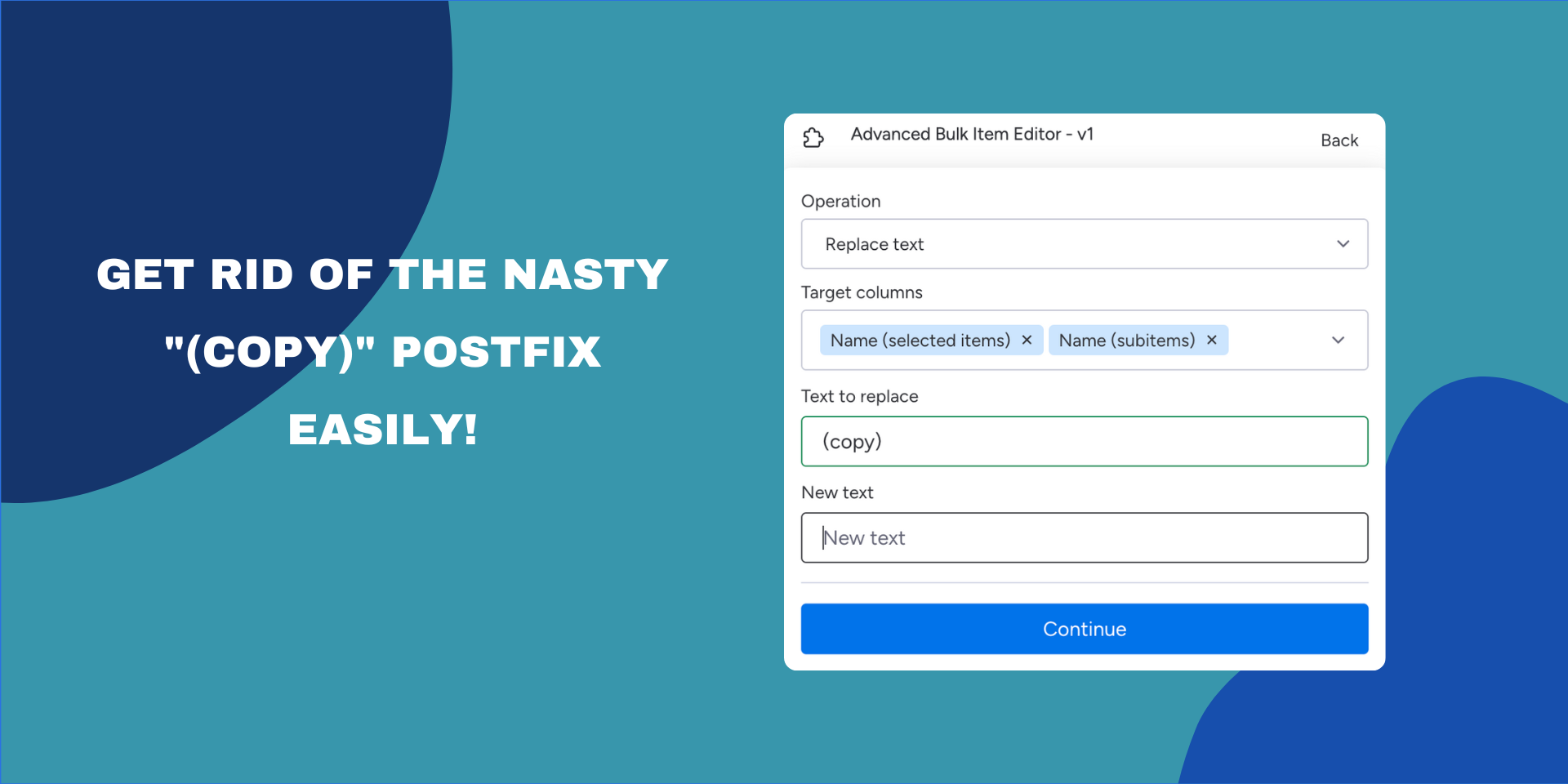
Did you make a typo in the item names? No problem! You can easily replace text in multiple items and subitems in one go.
To replace text in multiple items and subitems please follow the steps below:
- Open the board with the items you want to modify.
- Mark items you want to modify.
- Open Advanced Bulk Item Editor app from selected items context menu.
- Select the “Replace text” action.
- Select columns you want to modify.
- Provide the text you want to replace and the new text.
- Click “Continue” button.
- Review changes and click “Apply” button.
- Check the results in the board.
Please have a look at the video below to see how to replace text in multiple items and subitems.
Supported actions
| Action name | Supported columns | Short description |
|---|---|---|
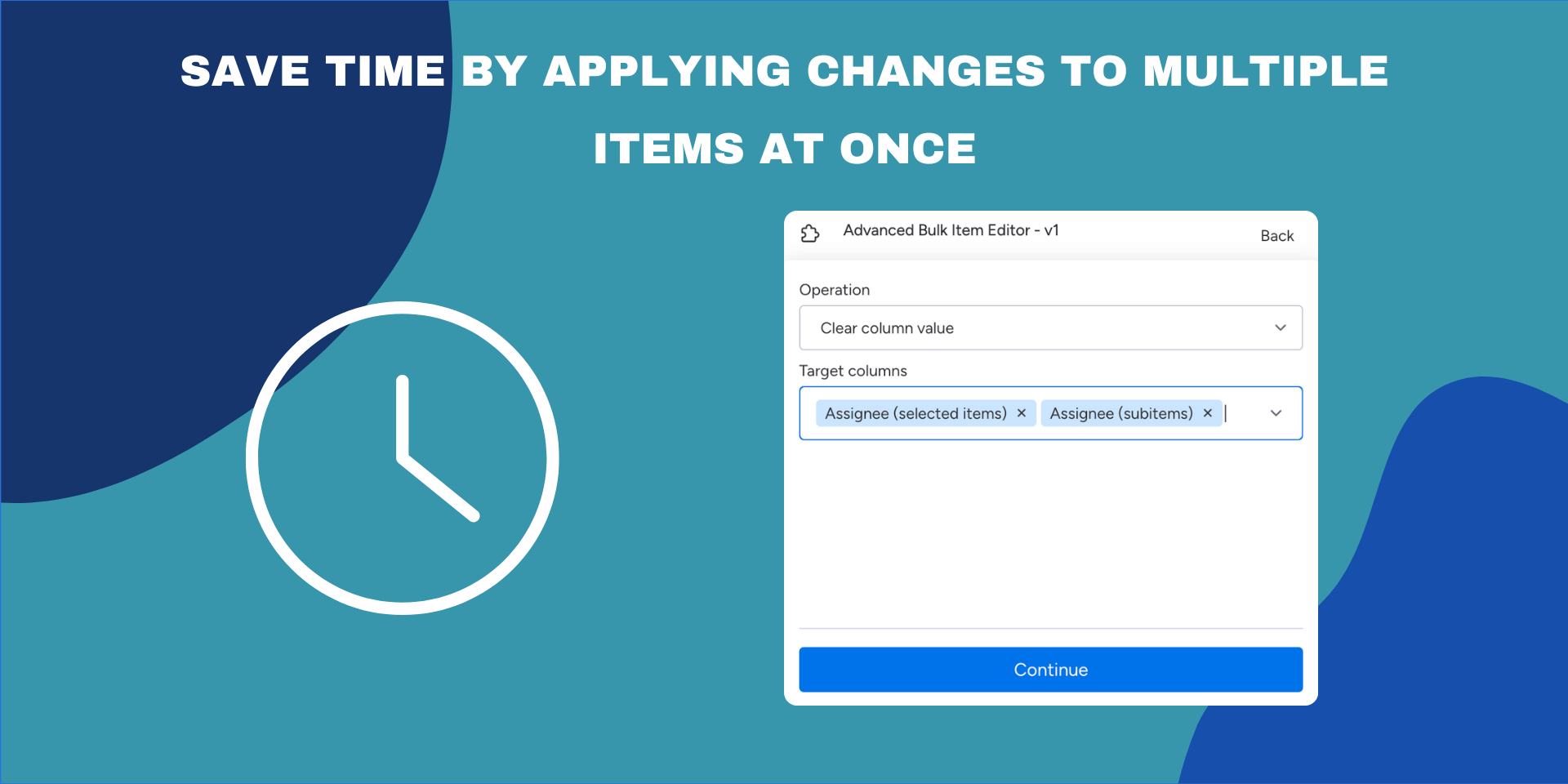
| Clear column value | All | Clears values of selected columns. |
| Shift date | Date Column | Shifts due date. For expression 1m 2w 3d the due date will be shifted by 1 month, 2 weeks and 3 days. |
| Set date | Date Column | Set due date to newly selected date. |
| Add assignee | People Column | Add selected assignees to column values. |
| Set assignee | People Column | Set selected people and teams as assignees |
| Remove assignee | People Column | Remove selected assignees from column values. |
| Replace text | Name, Text, Long Text | Replace defined phrase by provided text. |
| Set text | Name, Text, Long Text | Set column value to provided text. |
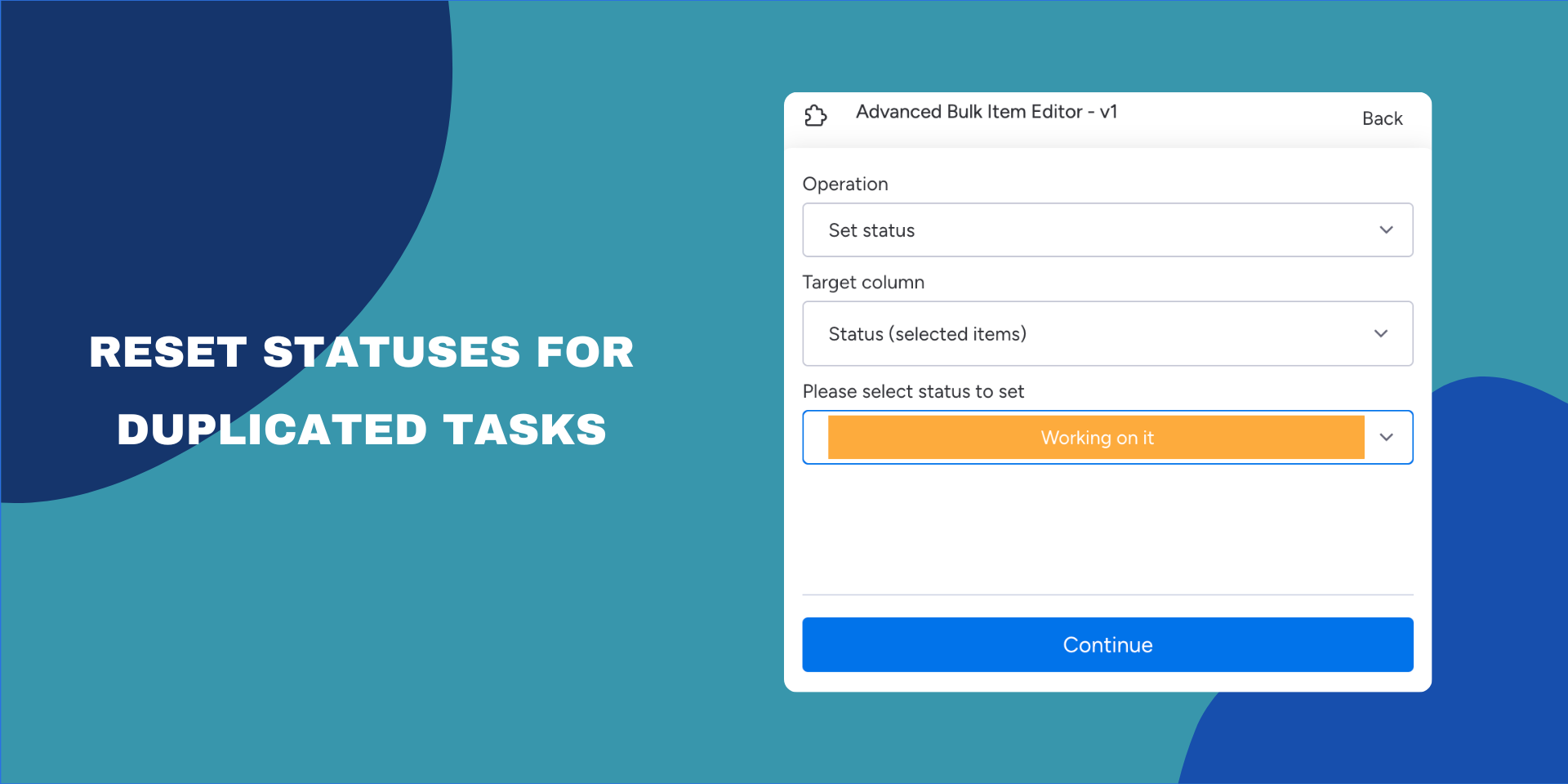
| Set status | Status Column | Set new status for selected items. |
Supported column types
Advanced Bulk Items Editor supports the following column types:
- The Text Column
- The Item Name Column
- The Date Column
- The Numbers Column
- The Status Column
- The Long Text
- The Tags
- The Dropdown Column
- The Link Column
- The Email Column
- The Checkbox Column
- The People Column
- The Timeline
- The monday Doc Column
- The Files Column
- The Connect Boards Column
- The Country Column
- The Dependency Column
- The Hour Column
- The Location Column
- The Phone Column
- The Rating Column
- The Week Column
- The World Clock Column
More column types will be supported in the future.
App gallery
Feedback
If there’s a feature you’d like use to implement, we’d love to hear from you! Please send an email to team@apmdsoft.com .
Advanced Bulk Item Editor
Table of Contents
How to use
Applying edits to selected items and subitems
Applying changes to subitems conditionally
Do you need to apply changes to subitems conditionally? No problem! By defining conditions you can apply changes to subitems only if the condition is met.
To apply changes to subitems conditionally please follow the steps below:
- Open the board with the subitems you want to modify.
- Mark parent items of subitems you want to modify.
- Open Advanced Bulk Item Editor app from selected items context menu.
- Select the edit you want to perform. For example, “Set status”.
- Select the subitems status column you want to modify.
- Select the status you want to set.
- Click “Define subitems filter” button.
- Select the column you want to filter by.
- Provide the filter condition. For example, “Does not contain”.
- Provide the filter value. For example, “Facebook”.
- Click “Continue” button.
- Review changes and click “Apply” button.
- Check the results in the board.
Please have a look at the video below to see how to apply changes to subitems conditionally.
Shifting due dates
Was your project deadline moved? No problem! You can easily shift due dates for multiple items and subitems in one go.
To shift due dates for multiple items and subitems please follow the steps below:
- Open the board with the items you want to modify.
- Mark items you want to modify.
- Open Advanced Bulk Item Editor app from selected items context menu.
- Select the “Shift date” action.
- Select the date columns you want to modify.
- Provide the expression for shifting the due date. For example, 1m 2w 3d will shift the due date by 1 month, 2 weeks and 3 days.
- Click “Continue” button.
- Review changes and click “Apply” button.
- Check the results in the board.
Please have a look at the video below to see how to shift due dates for multiple items and subitems.
Replacing text
Did you make a typo in the item names? No problem! You can easily replace text in multiple items and subitems in one go.
To replace text in multiple items and subitems please follow the steps below:
- Open the board with the items you want to modify.
- Mark items you want to modify.
- Open Advanced Bulk Item Editor app from selected items context menu.
- Select the “Replace text” action.
- Select columns you want to modify.
- Provide the text you want to replace and the new text.
- Click “Continue” button.
- Review changes and click “Apply” button.
- Check the results in the board.
Please have a look at the video below to see how to replace text in multiple items and subitems.
Supported actions
| Action name | Supported columns | Short description |
|---|---|---|
| Clear column value | All | Clears values of selected columns. |
| Shift date | Date Column | Shifts due date. For expression 1m 2w 3d the due date will be shifted by 1 month, 2 weeks and 3 days. |
| Set date | Date Column | Set due date to newly selected date. |
| Add assignee | People Column | Add selected assignees to column values. |
| Set assignee | People Column | Set selected people and teams as assignees |
| Remove assignee | People Column | Remove selected assignees from column values. |
| Replace text | Name, Text, Long Text | Replace defined phrase by provided text. |
| Set text | Name, Text, Long Text | Set column value to provided text. |
| Set status | Status Column | Set new status for selected items. |
Supported column types
Advanced Bulk Items Editor supports the following column types:
- The Text Column
- The Item Name Column
- The Date Column
- The Numbers Column
- The Status Column
- The Long Text
- The Tags
- The Dropdown Column
- The Link Column
- The Email Column
- The Checkbox Column
- The People Column
- The Timeline
- The monday Doc Column
- The Files Column
- The Connect Boards Column
- The Country Column
- The Dependency Column
- The Hour Column
- The Location Column
- The Phone Column
- The Rating Column
- The Week Column
- The World Clock Column
More column types will be supported in the future.
App gallery
Feedback
If there’s a feature you’d like use to implement, we’d love to hear from you! Please send an email to team@apmdsoft.com .