Connect + Sync Automations
Table of Contents
How to use
Connecting automatically the items by connect board column
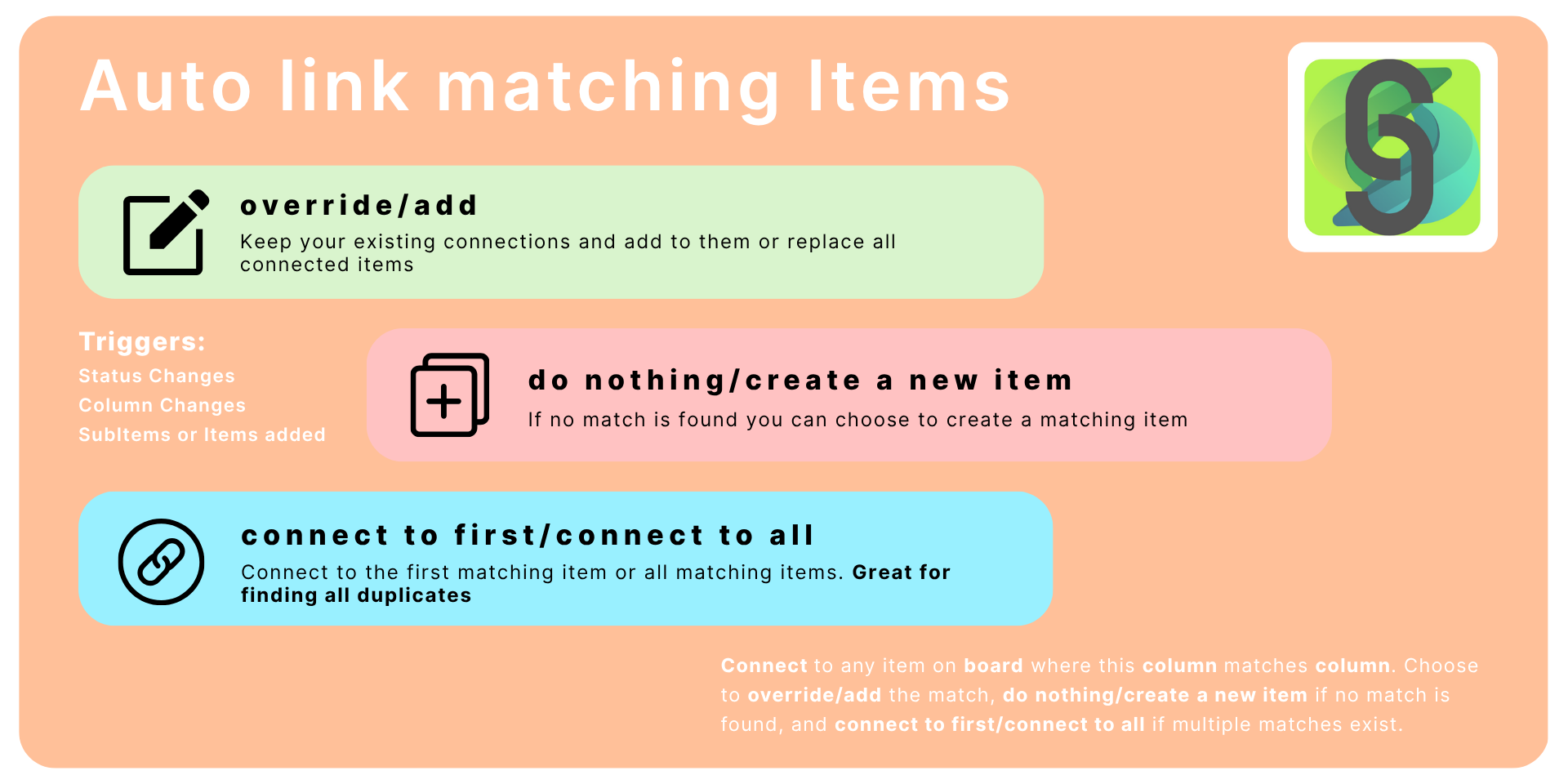
Connect & Sync Automations can automatically connect items and subitems when they are created or when columns change. The following triggers are available:
- item is created
- subitem is created
- column value changes
- status changes to some specific value
How to configure the automation:
- Go to the Automation Center in monday.com.
- Open the Integrations panel.
- Select the Connect & Sync Automations app.
- Choose the automation type “When an item is created…” (or the appropriate trigger).
- Pick the board relation (connect) column where the item will be linked.
- Select the target board where the matching items are located.
- Choose the item/subitem column to compare and the target board column to match against.
- Decide whether to overwrite existing connections with the new matched item or add the new matched item.
- Choose what to do if no match is found: do nothing or create a new item and connect.
- Choose what to do if multiple matches are found: connect to the first match or connect to all matching items.
- Save and activate the automation.
Supported column types for items connection
Connect + Sync Automations can connect items and subitems with the following column types:
- The Item Name Column
- The People Column
- The Status Column
- The Date Column
- The Text Column
- The Numbers Column
- The Timeline Column
- The Link Column
- The Phone Column
- The Email Column
More column types will be supported in the future.
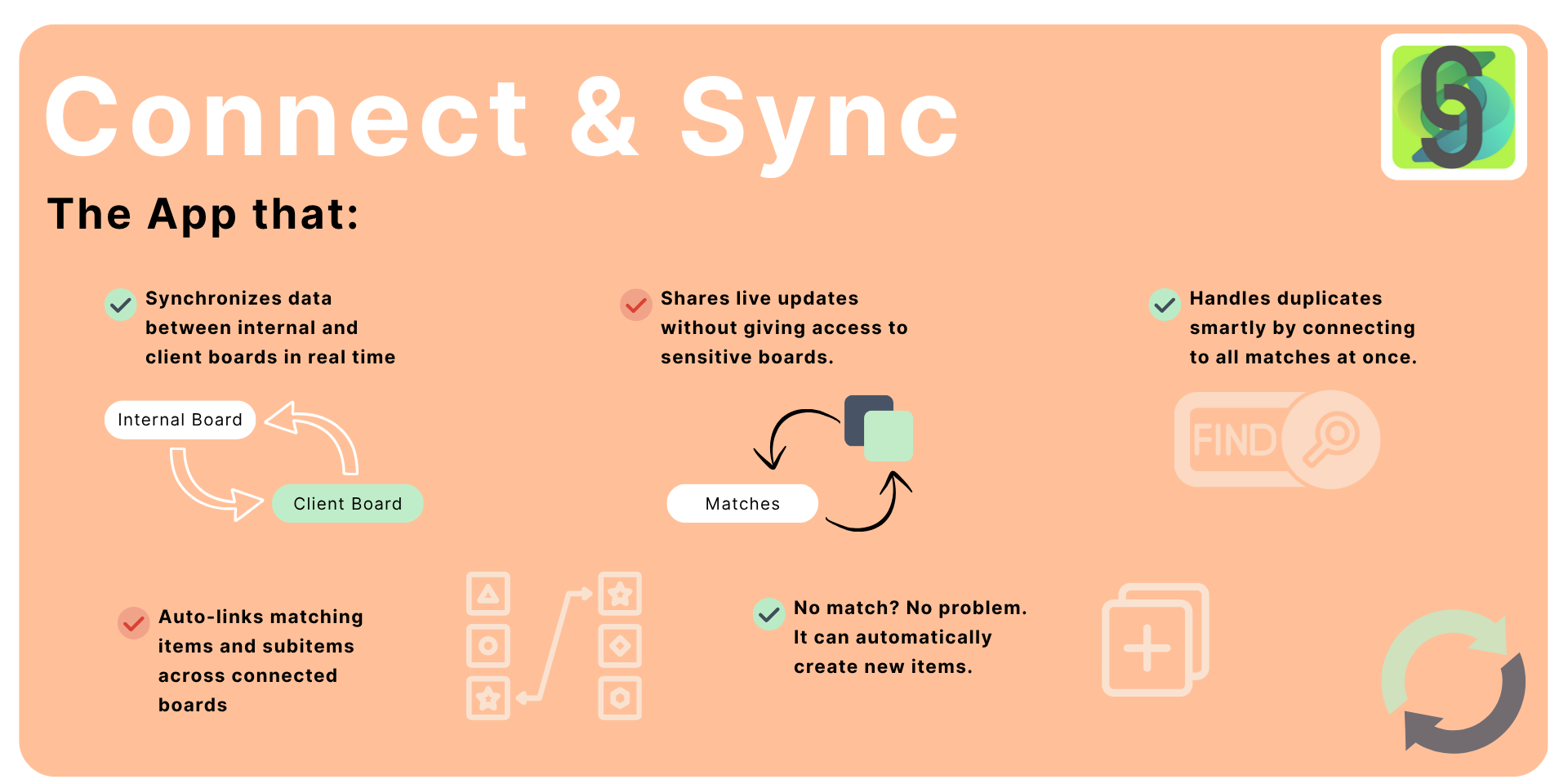
Synchronizing data between connected items
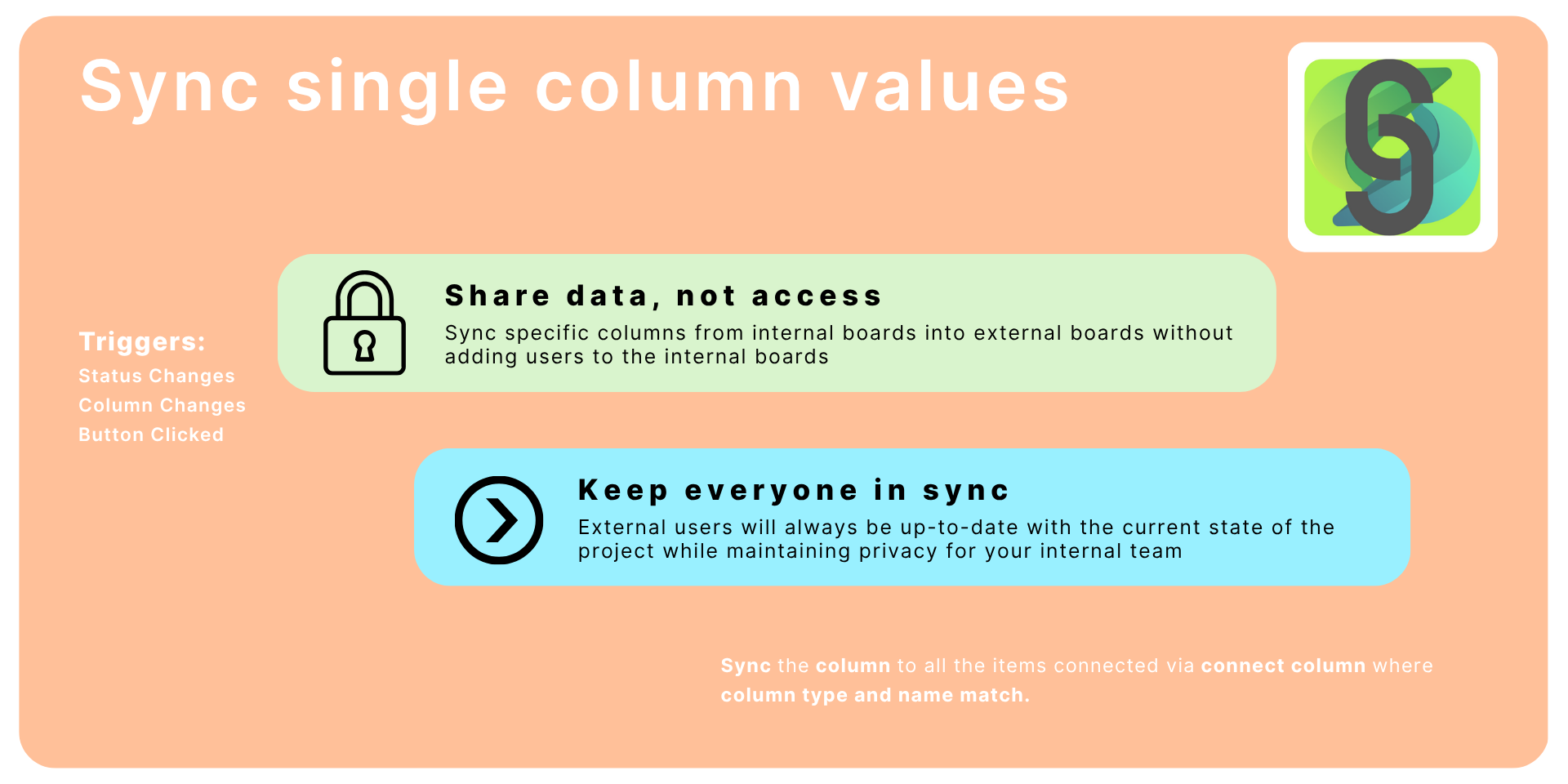
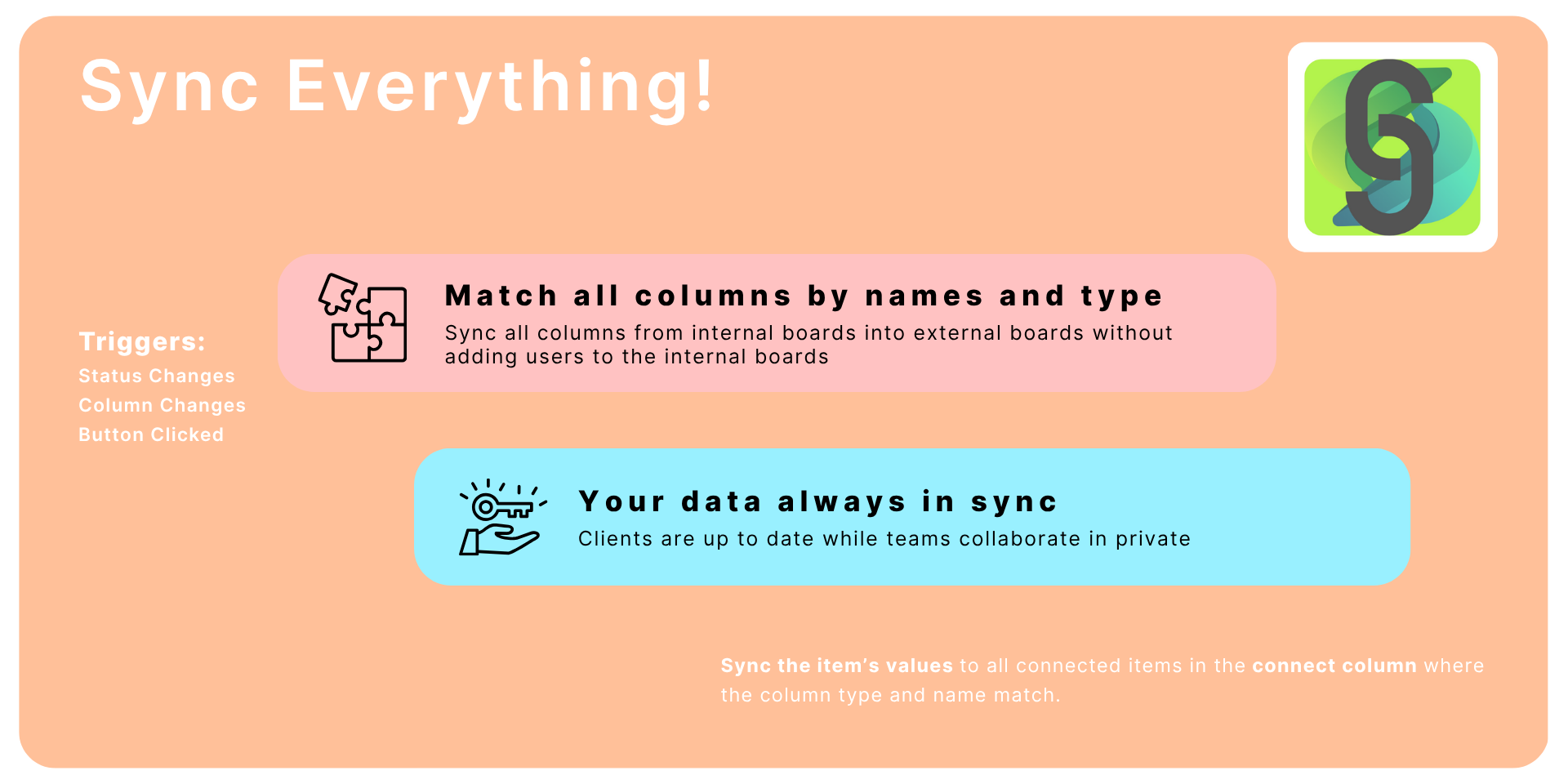
Connect & Sync Automations can synchronize data between connected items. The synchronization can be triggered by the following events:
- column value change
- button is clicked
- status changes to some specific value
Synchronizing specific column values
How to configure the sync automation:
- Go to the Automation Center in monday.com.
- Open the Integrations panel.
- Select the Connect & Sync Automations app.
- Choose the automation type “When [column] changes…”.
- Select the column that will trigger the sync when its value changes.
- Select the column that will be synchronized.
- Save and activate the automation.
Synchronizing all matching columns between connected items
How to configure the status-change sync automation:
- Go to the Automation Center in monday.com.
- Open the Integrations panel.
- Select the Connect & Sync Automations app.
- Choose the automation type “When [status] changes to [something]…”.
- Select the status column to watch for changes.
- Specify the particular status value (e.g., “Done”, “Review”) that will trigger the sync.
- Choose the board relation (connect) column linking this item to others.
- Save and activate the automation.
Supported column types for values synchronization
Connect + Sync Automations can synchronize the following column types:
- The Checkbox Column
- The Country Column
- The Date Column
- The Dropdown Column
- The Email Column
- The Hour Column
- The Link Column
- The Location Column
- The LongText Column
- The Numbers Column
- The People Column
- The Phone Column
- The Rating Column
- The Status Column
- The Tags Column
- The Text Column
- The Timeline Column
- The Week Column
- The World Clock Column
App gallery
Feedback
If there’s a feature you’d like use to implement, we’d love to hear from you! Please send an email to team@apmdsoft.com .
Connect + Sync Automations
Table of Contents
How to use
Connecting automatically the items by connect board column
Connect & Sync Automations can automatically connect items and subitems when they are created or when columns change. The following triggers are available:
- item is created
- subitem is created
- column value changes
- status changes to some specific value
How to configure the automation:
- Go to the Automation Center in monday.com.
- Open the Integrations panel.
- Select the Connect & Sync Automations app.
- Choose the automation type “When an item is created…” (or the appropriate trigger).
- Pick the board relation (connect) column where the item will be linked.
- Select the target board where the matching items are located.
- Choose the item/subitem column to compare and the target board column to match against.
- Decide whether to overwrite existing connections with the new matched item or add the new matched item.
- Choose what to do if no match is found: do nothing or create a new item and connect.
- Choose what to do if multiple matches are found: connect to the first match or connect to all matching items.
- Save and activate the automation.
Supported column types for items connection
Connect + Sync Automations can connect items and subitems with the following column types:
- The Item Name Column
- The People Column
- The Status Column
- The Date Column
- The Text Column
- The Numbers Column
- The Timeline Column
- The Link Column
- The Phone Column
- The Email Column
More column types will be supported in the future.
Synchronizing data between connected items
Connect & Sync Automations can synchronize data between connected items. The synchronization can be triggered by the following events:
- column value change
- button is clicked
- status changes to some specific value
Synchronizing specific column values
How to configure the sync automation:
- Go to the Automation Center in monday.com.
- Open the Integrations panel.
- Select the Connect & Sync Automations app.
- Choose the automation type “When [column] changes…”.
- Select the column that will trigger the sync when its value changes.
- Select the column that will be synchronized.
- Save and activate the automation.
Synchronizing all matching columns between connected items
How to configure the status-change sync automation:
- Go to the Automation Center in monday.com.
- Open the Integrations panel.
- Select the Connect & Sync Automations app.
- Choose the automation type “When [status] changes to [something]…”.
- Select the status column to watch for changes.
- Specify the particular status value (e.g., “Done”, “Review”) that will trigger the sync.
- Choose the board relation (connect) column linking this item to others.
- Save and activate the automation.
Supported column types for values synchronization
Connect + Sync Automations can synchronize the following column types:
- The Checkbox Column
- The Country Column
- The Date Column
- The Dropdown Column
- The Email Column
- The Hour Column
- The Link Column
- The Location Column
- The LongText Column
- The Numbers Column
- The People Column
- The Phone Column
- The Rating Column
- The Status Column
- The Tags Column
- The Text Column
- The Timeline Column
- The Week Column
- The World Clock Column
App gallery
Feedback
If there’s a feature you’d like use to implement, we’d love to hear from you! Please send an email to team@apmdsoft.com .