Connect + Sync Automations
Table of Contents
Overview
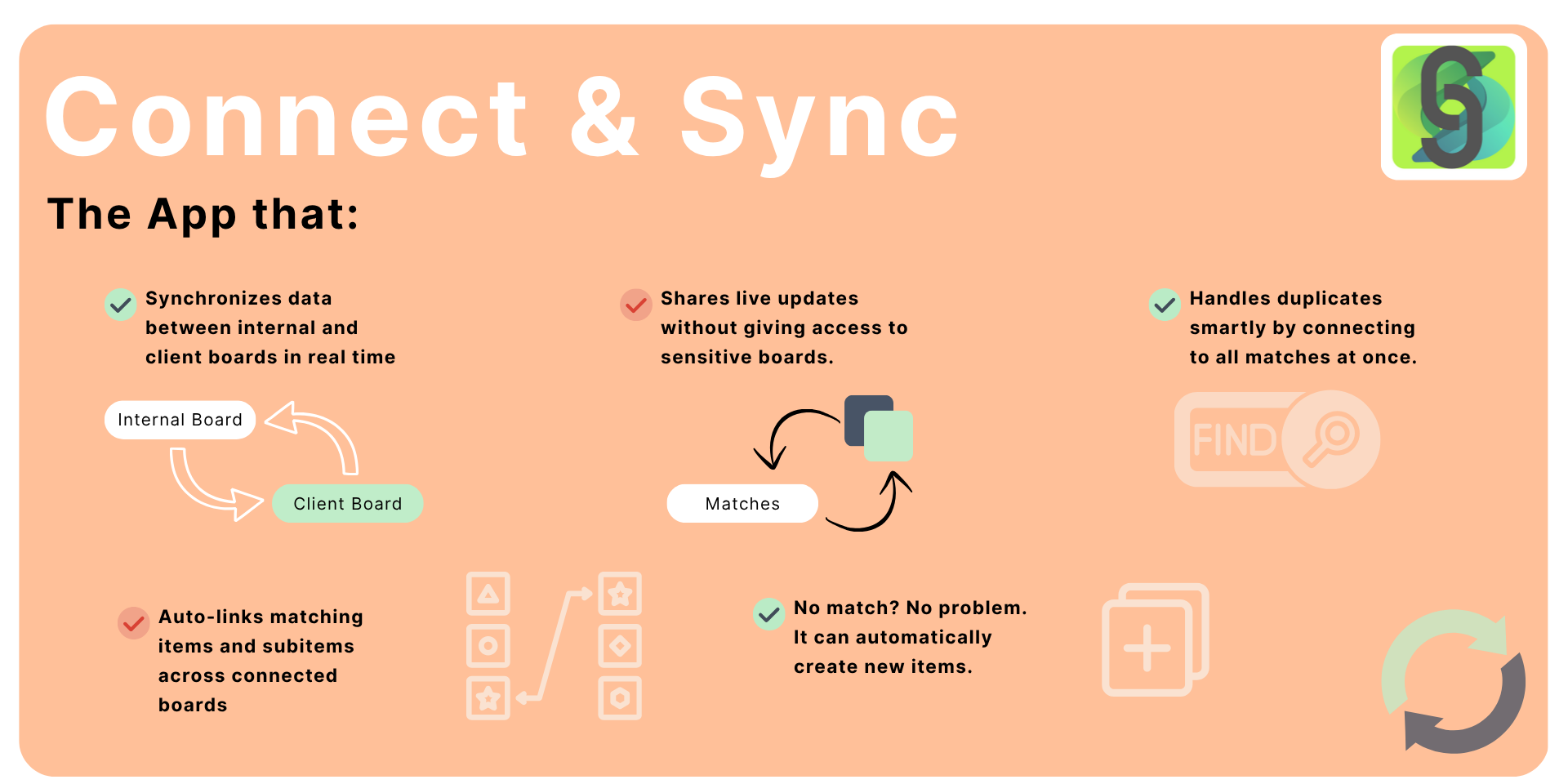
Keep your monday.com boards perfectly connected and in sync with Connect + Sync Automations! 🚀 Automatically link items and subitems across different boards — no manual linking needed! 🤖
Sync all or specific columns bi-directionally 🔄 so updates on one side are instantly reflected on the other. Mirror data across boards to overcome mirror column limits and improve visibility for teams and customers.
Save time, reduce errors, and streamline multi-board workflows with automatic connections and real-time syncing. Perfect for teams who want seamless collaboration and data consistency! 💡
Why you’ll love Connect + Sync Automations:
- ⏰ Save time with automatic connection of related items and subitems
- 🔄 Keep data synchronized across boards effortlessly with bi-directional sync
- 👀 Mirror key information to other boards, enhancing visibility for your customers and teams
- 🚫 Say goodbye to manual updates and errors — automate your workflow!
Installation
Install from monday.com apps marketplace or click the button below.

Key Features:
- 📌 Auto-Connect Items & Subitems: Create connections automatically on item creation or when columns change
- 🔄 Bi-Directional Sync: Keep selected columns up-to-date on both sides of the connection
- 🪞 Data Mirroring: Share connected data across boards for improved transparency and reporting
- ⚙️ Time-Saving Automation: Focus on what matters as your boards stay synced automatically
Use cases
🌍 Project management
See the bigger picture with connected items and subitems. Share only relevant data with your team.
🙌 Customer Success
Unify customer-specific values across items in different boards. Share only relevant data with your customers.
How to use
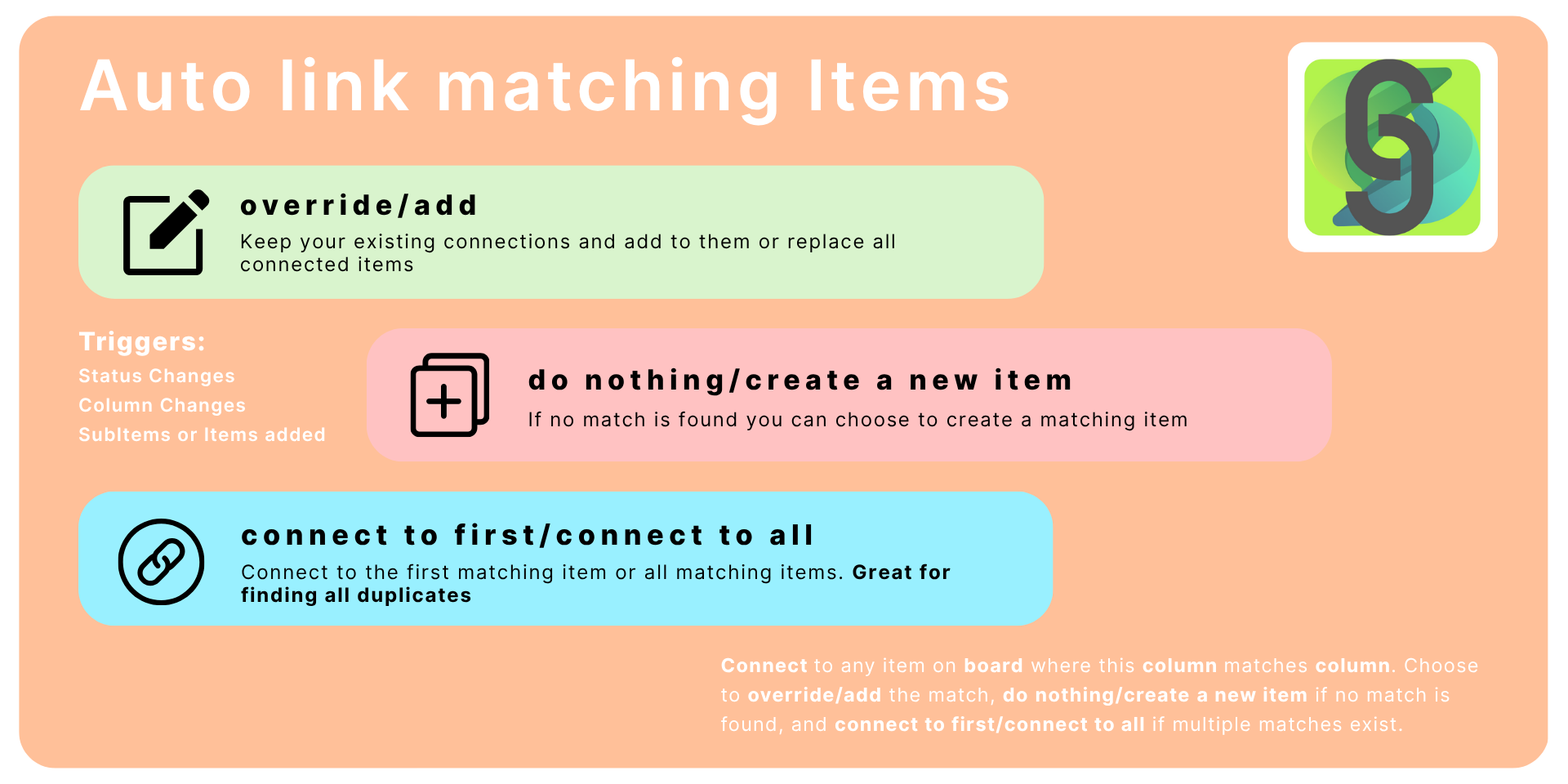
Connecting automatically the items by connect board column
Connect & Sync Automations can automatically connect items and subitems when they are created or when columns change. The following triggers are available:
- item is created
- subitem is created
- column value changes
- status changes to some specific value
How to configure the automation:
- Go to the Automation Center in monday.com.
- Open the Integrations panel.
- Select the Connect & Sync Automations app.
- Choose the automation type “When an item is created…” (or the appropriate trigger).
- Pick the board relation (connect) column where the item will be linked.
- Select the target board where the matching items are located.
- Choose the item/subitem column to compare and the target board column to match against.
- Decide whether to overwrite existing connections with the new matched item or add the new matched item.
- Choose what to do if no match is found: do nothing or create a new item and connect.
- Choose what to do if multiple matches are found: connect to the first match or connect to all matching items.
- Save and activate the automation.
Supported column types for items connection
Connect + Sync Automations can connect items and subitems with the following column types:
- The Item Name Column
- The People Column
- The Status Column
- The Date Column
- The Text Column
- The Numbers Column
- The Timeline Column
- The Link Column
- The Phone Column
- The Email Column
More column types will be supported in the future.
Synchronizing data between connected items
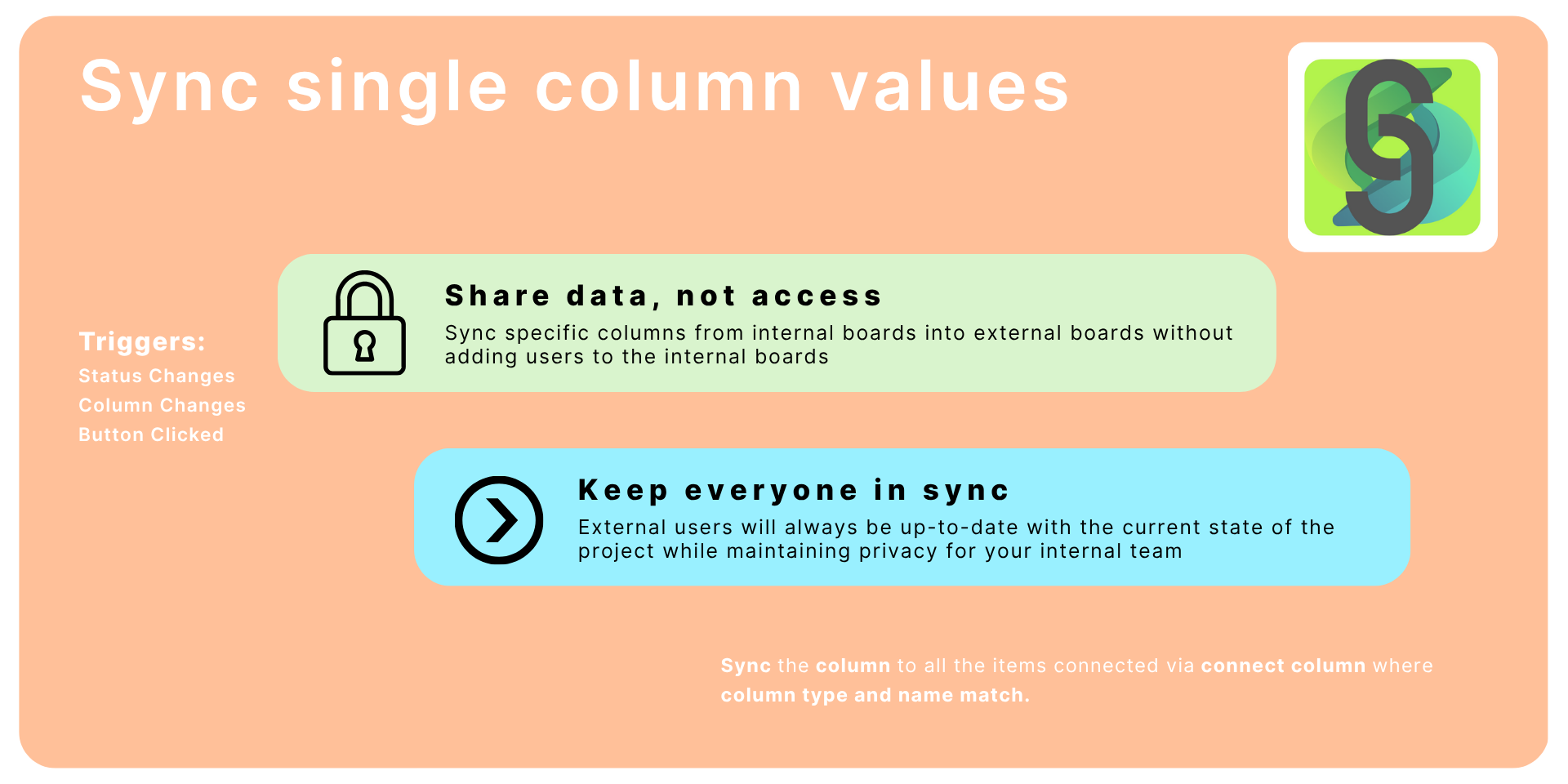
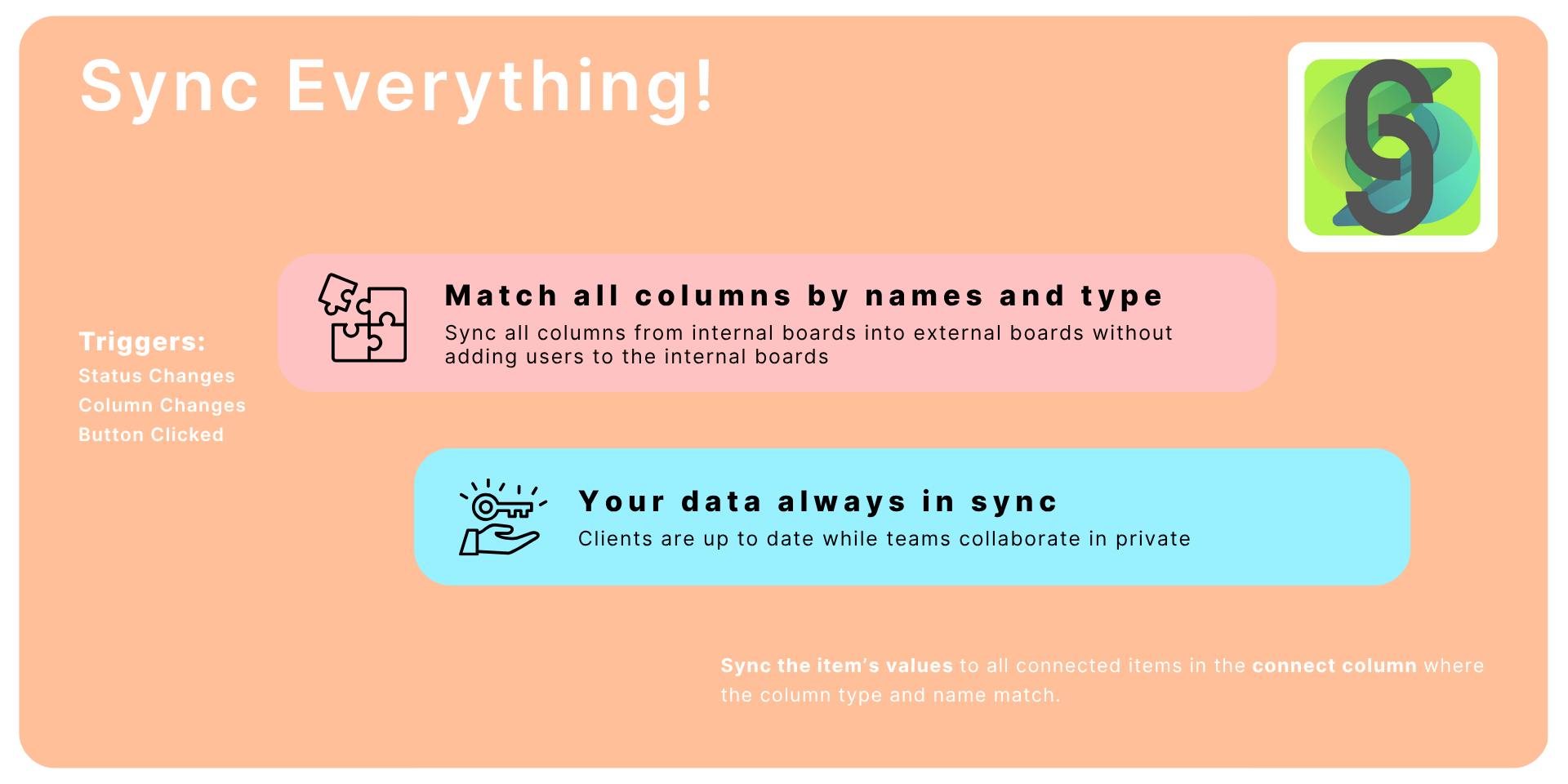
Connect & Sync Automations can synchronize data between connected items. The synchronization can be triggered by the following events:
- column value change
- button is clicked
- status changes to some specific value
Synchronizing specific column values
How to configure the sync automation:
- Go to the Automation Center in monday.com.
- Open the Integrations panel.
- Select the Connect & Sync Automations app.
- Choose the automation type “When [column] changes…”.
- Select the column that will trigger the sync when its value changes.
- Select the column that will be synchronized.
- Save and activate the automation.
Synchronizing all matching columns between connected items
How to configure the status-change sync automation:
- Go to the Automation Center in monday.com.
- Open the Integrations panel.
- Select the Connect & Sync Automations app.
- Choose the automation type “When [status] changes to [something]…”.
- Select the status column to watch for changes.
- Specify the particular status value (e.g., “Done”, “Review”) that will trigger the sync.
- Choose the board relation (connect) column linking this item to others.
- Save and activate the automation.
Supported column types for values synchronization
Connect + Sync Automations can synchronize the following column types:
- The Checkbox Column
- The Country Column
- The Date Column
- The Dropdown Column
- The Email Column
- The Hour Column
- The Link Column
- The Location Column
- The LongText Column
- The Numbers Column
- The People Column
- The Phone Column
- The Rating Column
- The Status Column
- The Tags Column
- The Text Column
- The Timeline Column
- The Week Column
- The World Clock Column
Pricing
| Plan name | Features | Monthly subscription cost | Annual subscription cost |
|---|---|---|---|
| Starter | Access to all automations 100 ops/month No user limits | 0 | 0 |
| Growth | Access to all automations No user limits 1,500 ops/month Email support | 20 | 16 |
| Pro | Access to all automations No user limits 4,000 ops/month Email support | 40 | 32 |
| Scale | Access to all automations No user limits 10,000 ops/month Email support | 80 | 64 |
| Business | Access to all automations No user limits 15,000 ops/month Email support Setup assistance | 105 | 84 |
| Enterprise | Access to all automations No user limits 30,000 ops/month Email support Setup assistance | 180 | 144 |
| Corporate | Access to all automations No user limits 60,000 ops/month Email support Setup assistance | 300 | 240 |
| Unlimited | Access to all automations No user limits Unlimited operations per month Email support Setup assistance | 400 | 320 |
Privacy policy
Application reads board data via monday API to connect and copy item’s values. There is no data storage involved in this process.
Pricing
Application has 14 days FREE trial.
Existing pricing plans are available at Connect + Sync Automations marketplace listing .
App gallery
Feedback
If there’s a feature you’d like use to implement, we’d love to hear from you! Please send an email to team@apmdsoft.com .